

How to use the tabular view and filters in DatoCMS
One of DatoCMS's greatest strengths is its ability to produce, catalog and control an extraordinary volume of content of every kind, collaboratively. That's why more and more companies and organizations that generate large amounts of text and audiovisual content rely on DatoCMS to manage it intelligently.
As the content produced for each model grows, however, finding the records you need with DatoCMS's standard view can get complicated. So how do we make every piece of data in the CMS efficient to access?
One of DatoCMS's greatest strengths is its ability to produce, catalog and control an extraordinary volume of content of every kind, collaboratively. That's why more and more companies and organizations that generate large amounts of text and audiovisual content rely on DatoCMS to manage it intelligently.
As the content produced for each model grows, however, finding the records you need with DatoCMS's standard view can get complicated. So how do we make every piece of data in the CMS efficient to access?



By combining two DatoCMS features that have been around for years, extremely useful but often forgotten: the tabular view and filters.
What is the tabular view?
The tabular view, or table view, is how content based on a model is presented in DatoCMS, letting you add columns with extra fields for a more granular record search. A list of records in tabular view looks like this:

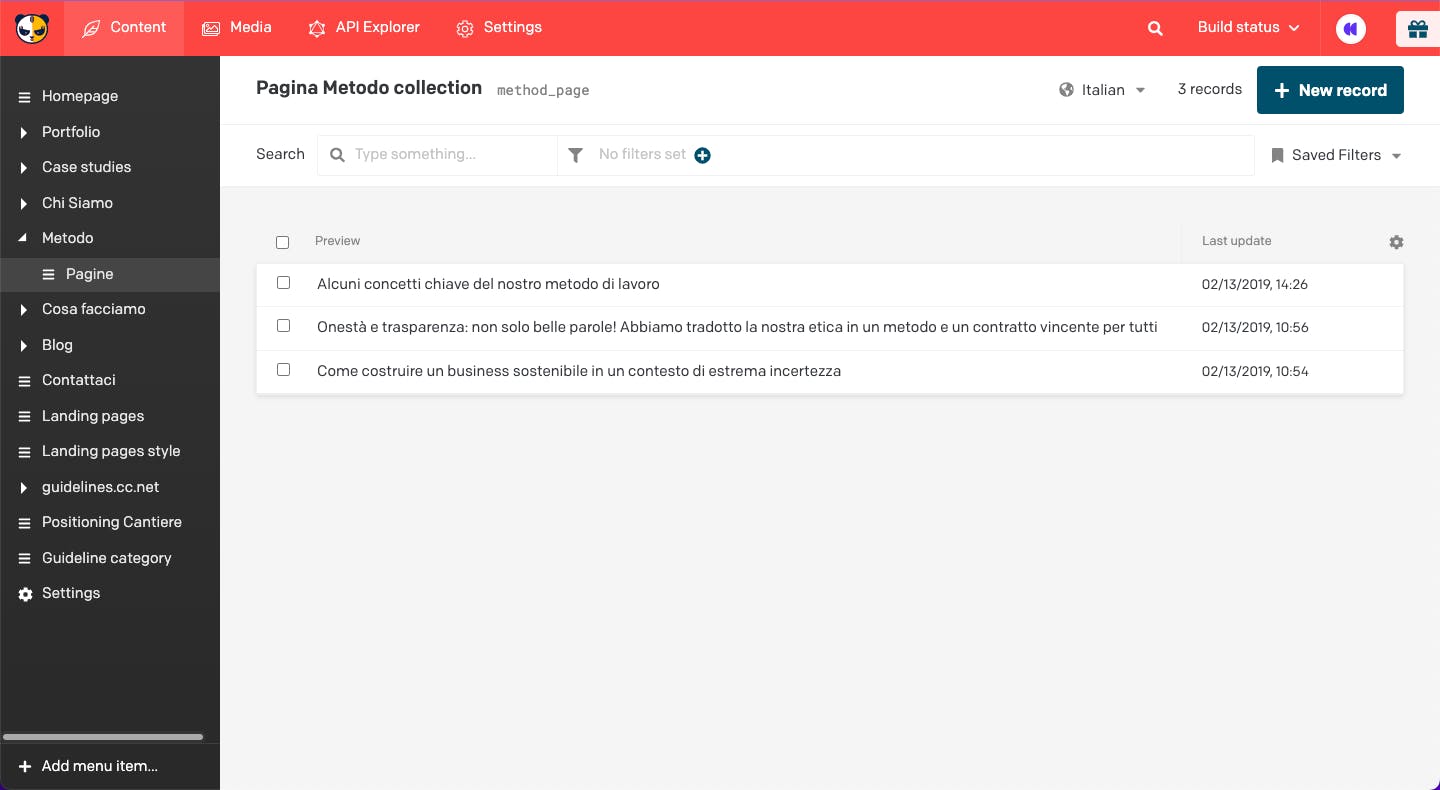
If yours doesn't look like this, the view selected for that model is probably set to compact mode:

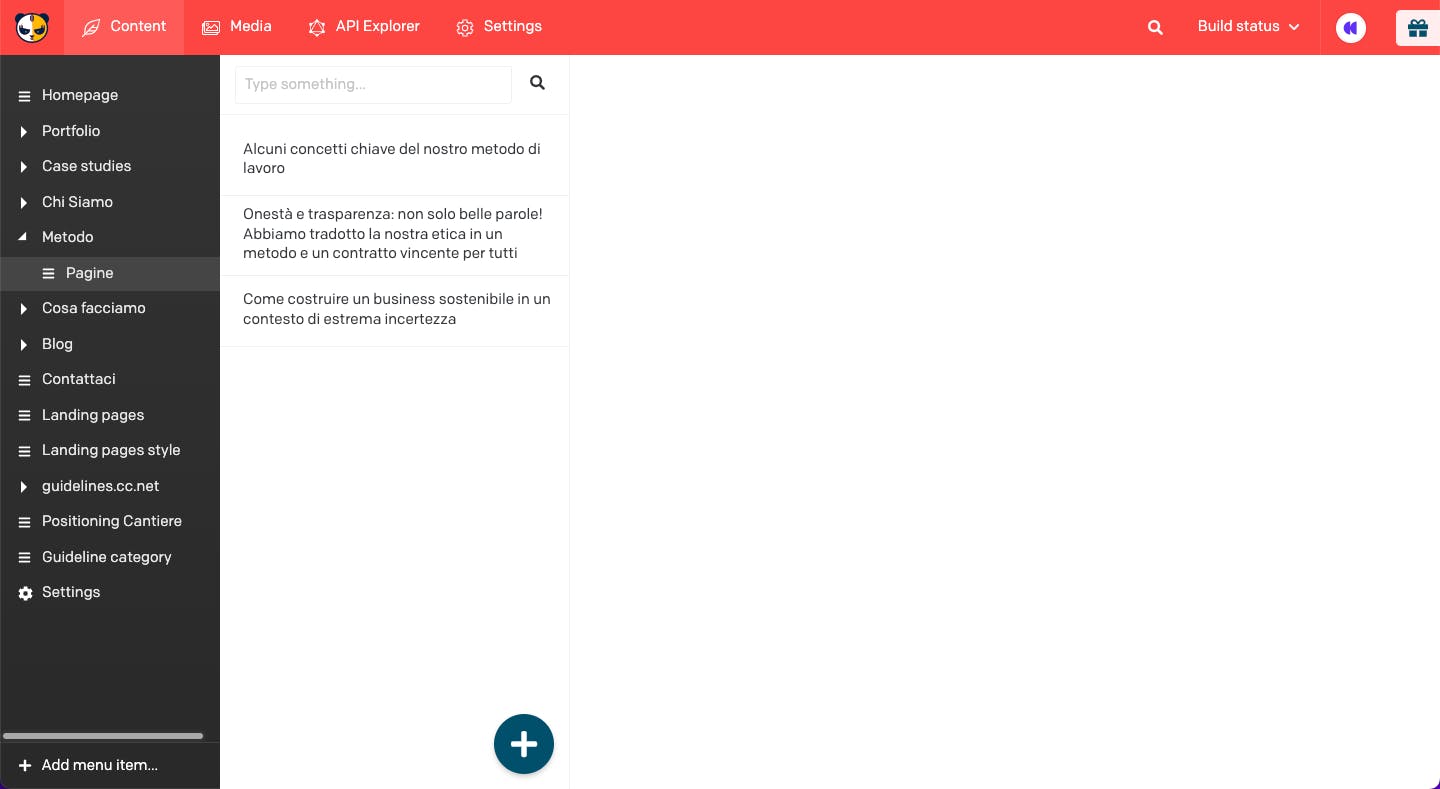
The compact view offers fewer search options, but it can be handy when the model has few records and you care more about editing speed than about searchability.
How do you add columns to the tabular view?
Adding new columns to the DatoCMS record list is very simple: just click the gear icon at the top right of the list and add the information you consider most important to keep in view. You might want the record authors always visible, or the scheduled publication date; there are plenty of options, and they depend a lot on the selected model.
From the field list, you can also change the order in which they appear in the list, for even more customization. Note: columns are tied to your account, not the project; each editor can pick the most suitable columns from their own account without worrying about changing them for everyone else.
How do you turn on the tabular view?
If you want to switch to the tabular view (or back), the fastest way is to click the model name at the top of the view, then press the edit model button and finally select the view you want from the tab in the model settings.
You can get the same result from "Settings" in the top bar while browsing: select "Models" in the left column, then choose the model to edit from the list of available ones.
How to use filters with the tabular view
Sometimes you have a record in mind that you need to edit but can't remember its name; filters come to the rescue by letting you narrow down the search. You can use several filters at once, even building complex logic, such as a publication date range or the article status (updated, draft, published).
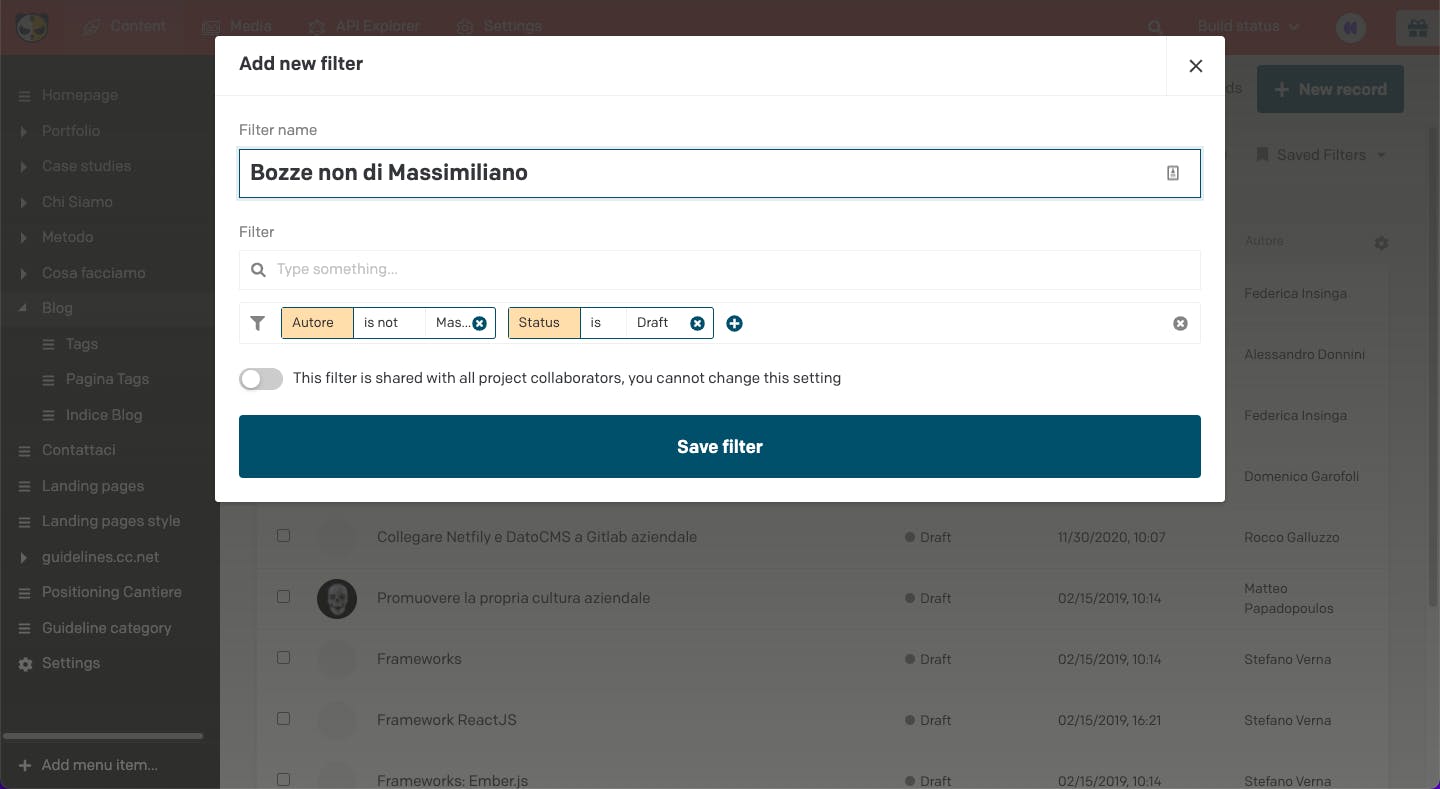
Plus, filters can be saved to reuse them later; just click the flag to the right of the saved filters.

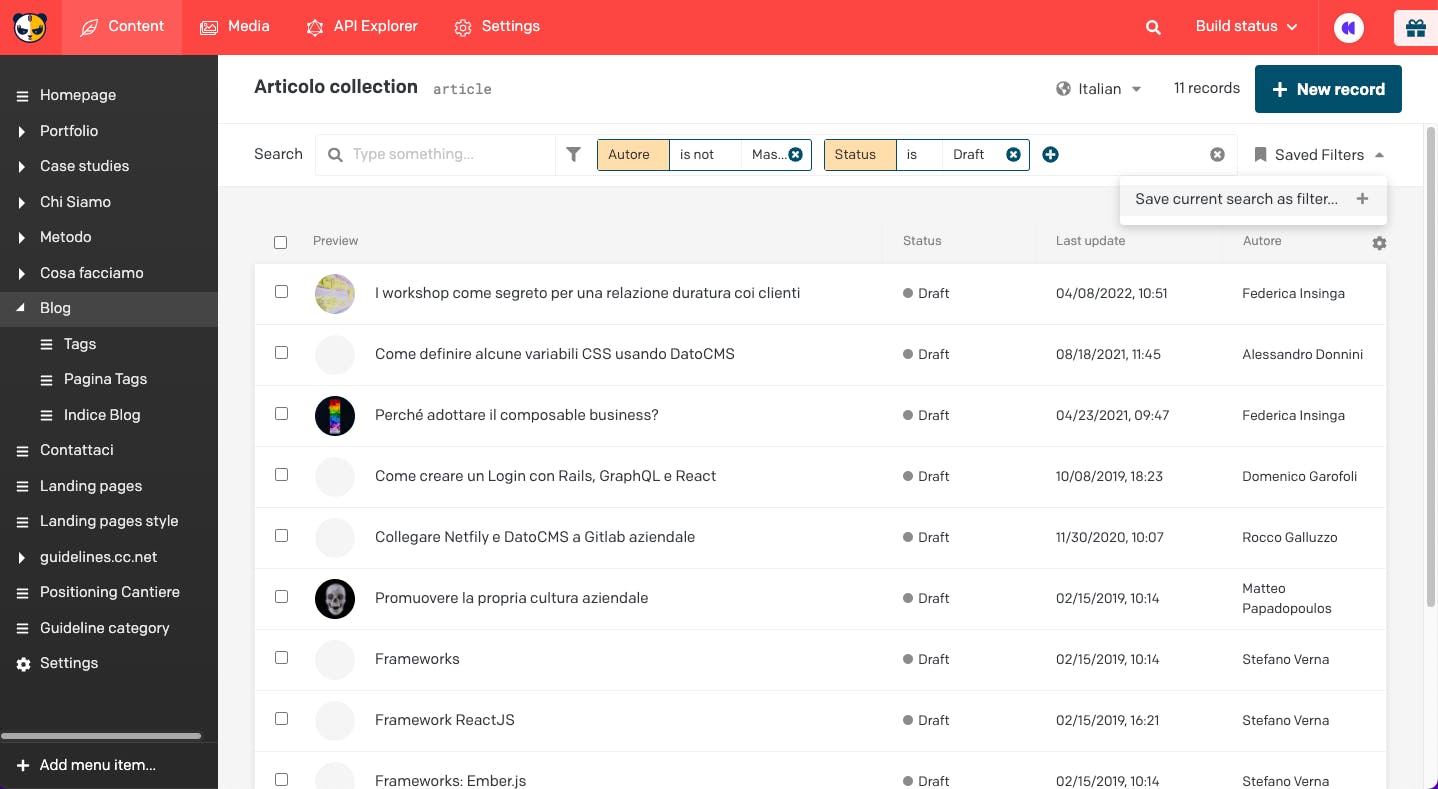
Saved filters can be shared with other collaborators or kept tied to your own account.
Give your editorial team an edge
The tabular view and filters are two DatoCMS features that can give your editorial team a real hand, making searching, editing and managing records exponentially more efficient. If you need tailored advice on getting the most out of DatoCMS, or want to discover more tips about the world's most powerful and versatile headless CMS, drop us a line and we'll get back to you as soon as possible!


