

How to manage multiple languages in DatoCMS
Had a multilingual website built with DatoCMS and want a guide to adding content? Here's everything you need to know.
Had a multilingual website built with DatoCMS and want a guide to adding content? Here's everything you need to know.


How to switch between languages in DatoCMS
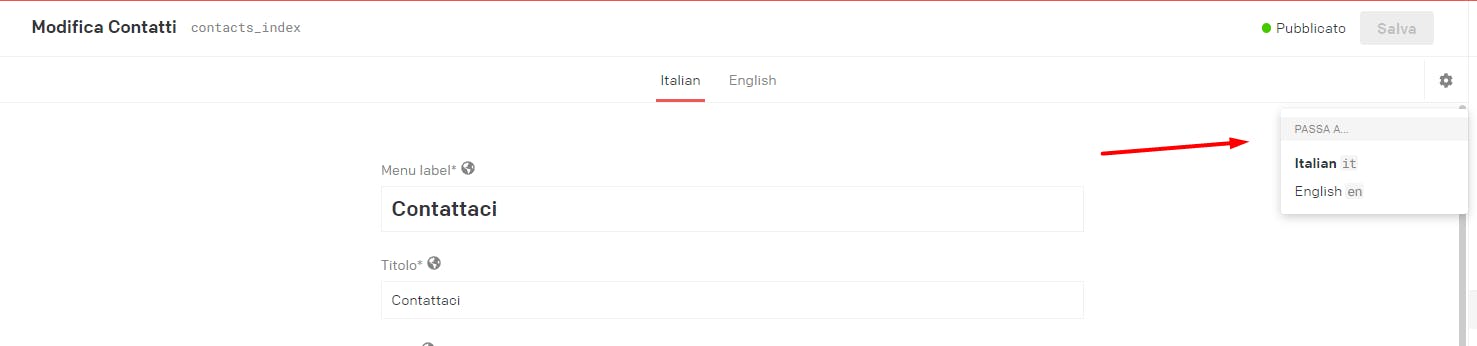
To switch from one language to another while adding content to your DatoCMS website, you have two options: you can click on the language at the top

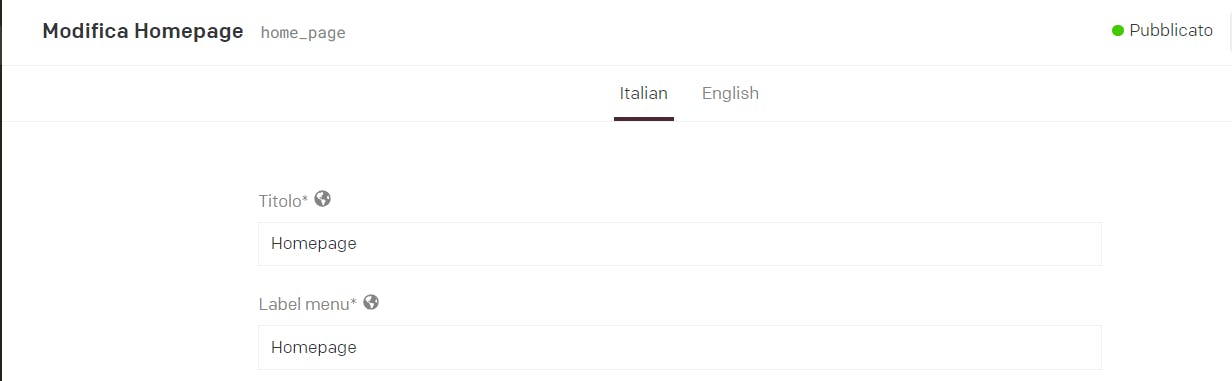
or on the gear icon on the right, which lets you switch screens and add content.

How to write content
We covered adding text and other content in DatoCMS in our first blog post. In case you missed it, here's the link.
If the record you're editing is made up of a single block (usually named “body”), you can copy and paste your text from your own document or start translating directly in the CMS.
We always recommend keeping a copy in Google Docs or Dropbox Paper for extra safety.
To add images or videos, just type “/”, as you would in Italian.
If your site was built with modular content, to get the same structure as the Italian version, simply click “copy structure from Italian”.
From there, you can add your translated text blocks and images.
How to rank a multilingual website on search engines
When you decide to have a multilingual website, you can't overlook search engine ranking, because users will probably search for you with keywords not only in Italian but also in the second language.
So you need to optimize the titles and descriptions of every page and the alt text of every image.
Multilingual on-page SEO
To optimize the title and description of every page on the site, switch to the second language using the methods above. At the bottom of every page, just like in Italian, you'll find the SEO box to fill in for the second language.
Remember that even if the SEO box preview shows a title and description filled in for one language, that doesn't mean they've already been optimized for the others; until you or a colleague add them, the localized pages won't rank properly on search engines. That's because, without a custom description, DatoCMS falls back to the default one from the site's global SEO settings.
Multilingual metadata
Adding metadata is easier than it looks. Once you're in the Media Area and have already added it in Italian, just click the language dropdown and you'll find the same empty fields to fill in the title and alt text for the second language.
Either way, we're always here!
We designed this hands-on guide to be easy to consult, to support you and save you time.
If it hasn't answered your questions, though, don't hesitate to contact us. Cantiere Creativo's marketing team will guide you through adding your content.


