

SSL Certificates with Let's Encrypt
For some projects, managing SSL certificates is a burdensome process, both because of the cost of the certificate itself and because of the manual paperwork involved (request, authentication, payment, submission). The budget may simply not stretch to cover it. Let's Encrypt is one possible solution: it lets us get browser-trusted SSL certificates automatically and for free!


Update May 19, 2016
Over the last month, Let's Encrypt moved from beta to an official release, so this article has been updated with the new commands
Managing SSL certificates
SSL is a layer on top of the TCP/IP stack that encrypts the messages exchanged over application-level protocols (HTTP, FTP, etc.) using an asymmetric key mechanism. This prevents man-in-the-middle attacks, because even if packets are intercepted, they can't be read.
With web technology, servers handle the encrypted communication directly, listening on a port (usually port 443).
Verifying the SSL certificate
When a client opens a secure connection to a web server, the server provides a certificate associated with a domain name, which starts the authentication phase. At the end of this process, the client is guaranteed that no one else can read the messages exchanged with the server.
But who assures the client of the server's real identity? This is where certification authorities come in.
These bodies are the only ones that provide servers with signed keys. That way, by querying them during authentication, clients can tell whether a certificate is genuine or not.
If it is genuine, the browser bar shows a green padlock, indicating that the connection is secure.

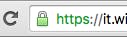
If the certificate isn't issued by a CA but generated independently (so-called self-signed certificates), the connection is still encrypted, but we have no guarantee of the server's identity. In that case, we'll see a red padlock.

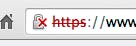
Until recently, getting a green-padlock certificate meant applying to a CA, which requires a whole series of steps (sometimes even phone calls to the owner of the domain being authenticated) before issuing a valid SSL certificate.
Let's Encrypt!
Let's Encrypt is a certificate authority that provides a free, automated way to generate SSL certificates.
The mechanism is fairly simple: you install a client on the server that handles the domain to verify, which triggers an authentication process that ends with a valid certificate being generated. Then you just configure the web server to use those keys and you're done
Configuring Nginx
Let's walk through an example on an Ubuntu 14.04 server running nginx as the web server.
First, let's install Let's Encrypt and create the configuration folders:
$ cd /root
$ git clone https://github.com/certbot/certbot
$ cd certbot && ./certbot-auto --os-packages-only
mkdir -p /var/www/letsencrypt
or, on Ubuntu 16.04 LTS, directly with aptitude
$ sudo apt-get install certbot
Now, in the domain's nginx configuration file, add the following directive
location ^~ /.well-known {
  alias /var/www/letsencrypt/.well-known;
}
Let's Encrypt uses this directory to give the ACME certification authority an encoded file that confirms our identity and our ability to administer the domain being certified.
Restart the server.
Now we can run the command and, if the CA recognizes the server's identity, we'll get a valid SSL certificate.
$ /root/certbot/certbot-auto certonly --webroot -w /var/www/letsencrypt -d mydomain.example.com --no-interactive --agree-tos --email admin@example.com
When the program finishes, if all went well, we'll find the certificate and the private key installed in /etc/letsencrypt/live/mydomain.example.com/.
All that's left is to edit the nginx configuration file again and set up HTTPS with the newly generated keys.
# Si reindirizzano tutte le richieste http verso l'https
server {
  listen *:80;
  server_name mydomain.example.com;
  return 301 https://mydomain.example.com:443$request_uri;
}

server {

  listen *:443 ssl;

  server_name mydomain.example.com
  ssl on;
  ssl_certificate /etc/letsencrypt/live/mydomain.example.com/fullchain.pem;
  ssl_certificate_key /etc/letsencrypt/live/mydomain.example.com/privkey.pem;

  location ^~ /.well-known {
    alias /var/www/letsencrypt/.well-known;
  }
  .
  ...
}
and restart the server.
Now, visiting the URL *https://mydomain.example.com * we'll see the green padlock appear.
Automating certificate renewal
The certificate has a fixed expiration, usually 90 days, after which it will no longer be verified.
To renew the certificate, we use another command:
$ /root/certbot/certbot-auto certonly --webroot -w /var/www/letsencrypt -d mydomain.example.com --no-interactive --keep-until-expiring
which renews the certificate for the given domain if the current one expires in less than 30 days.
Now we can schedule an automatic renewal: add these lines to the file '/etc/cron.daily/renew'
#! /bin/bash
/root/certbot/certbot-auto certonly --webroot -w /var/www/letsencrypt -d mydomain.example.com --no-interactive --keep-until-expiring
service nginx restart
and, like magic, when we're 30 days from expiration we'll have a brand-new certificate.
If you like, you can reduce the frequency to one renewal attempt per week, but I'd avoid a monthly one: in the unlucky case (you know Murphy's law, right?) that the script fails for any reason, you could end up with a red padlock on your homepage.
Finally, you may need to renew the certificate immediately. In that case, replace the '--keep-until-expiring' option with '--renew-by-default', which skips the 30-day check and renews it right away (be careful not to abuse it: the ACME API allows a maximum of 7 certificates per week)
As some of you will have noticed, we always use the certbot-auto script (which installs all the required packages) instead of the certbot executable installed on the machine. The reason is simple: packages for various operating systems are starting to appear in the repositories, with their own dependency updates, so using the git repository is starting to trigger warnings about missing updates. certbot-auto will update any dependencies as needed (of course, if you want a full update you'll need to update the git repository manually).
A quick thought
FINALLY!!!
More and more sites are moving to HTTPS to protect the privacy of the information they transmit. Having to pay quite handsomely for certificates (we're talking up to a hundred euros a year) was starting to smell almost like a protection racket, since HTTPS has become an essential requirement.
The only weakness I personally see is that, while certbot is authenticating the domain, a man-in-the-middle attack could intercept the request for a new certificate. But since the process takes about 5-6 seconds roughly every 2 months, I think the odds are about as remote as generating a random string and ending up with a valid certificate.


