

How to use the DatoCMS Media Area
The DatoCMS Media Area is a powerful, precise tool for managing, cataloging and optimizing all the editorial assets in your project. Behind its simple look are features that can transform the way you manage a website's assets.
The DatoCMS Media Area is a powerful, precise tool for managing, cataloging and optimizing all the editorial assets in your project. Behind its simple look are features that can transform the way you manage a website's assets.



What's in the Media Area?
Clicking "Media" in the top-right menu of the DatoCMS dashboard brings up an aggregated view of all previously uploaded media.


This is the default view, but you can change it by clicking one of the buttons at the top center.
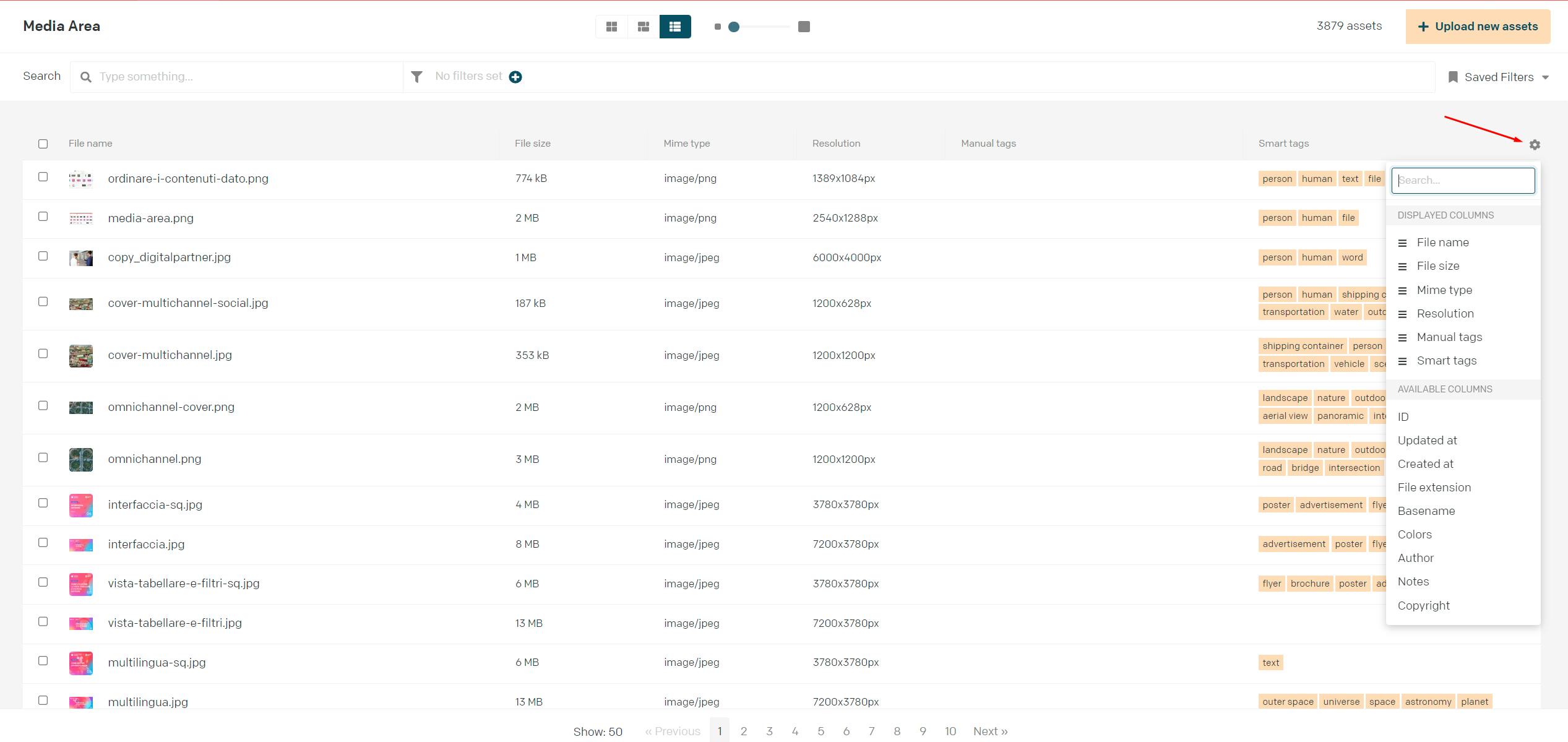
The second view, called masonry, doesn't fit content into a grid of square previews, so it helps you see the details of horizontal content better, while the third, called table view, makes it easy to delete, edit, tag and view multiple images at once.
Table view also lets you add new columns, for example based on colors, file extension, authors or exact creation date.

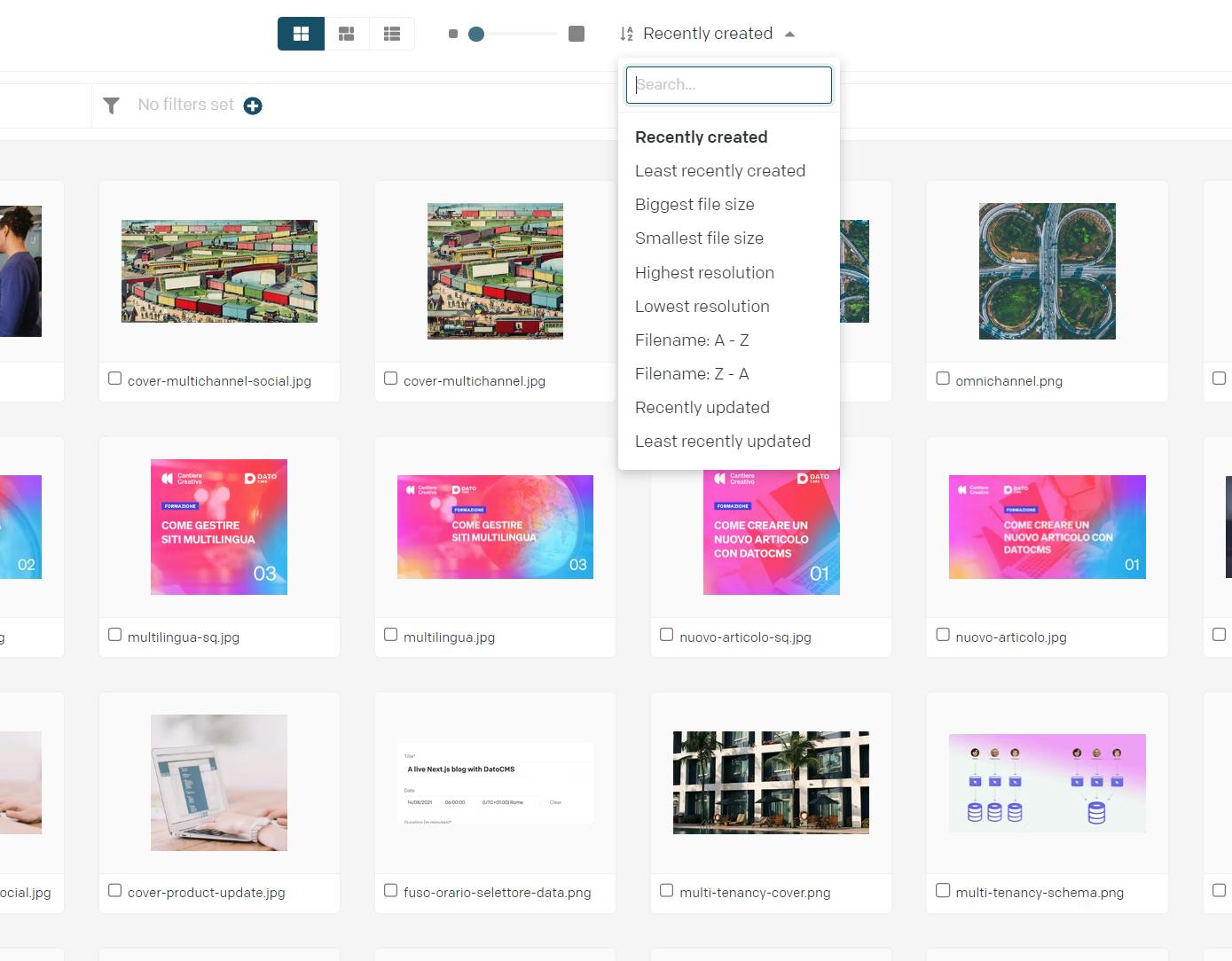
The slider to the right of the view selector lets you enlarge or shrink the previews, while the dropdown next to it lets you sort results by different parameters, such as publication date or file size.

Besides uploading from within a record, you can upload content directly from the Media Area by clicking the button in the top right.
Don't worry about duplicate content: DatoCMS can recognize already-uploaded images with a good degree of confidence.
What's in the asset details
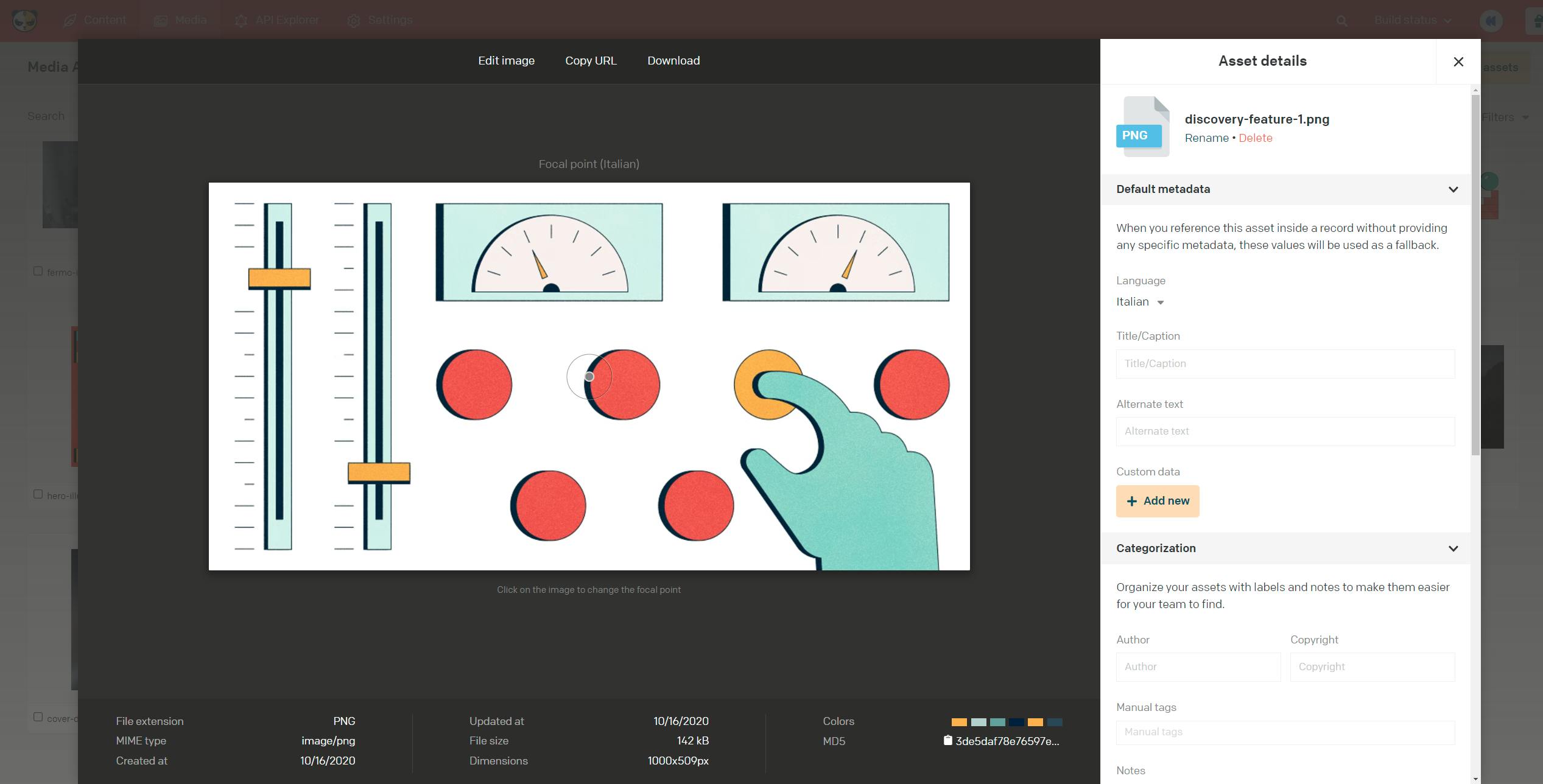
Clicking any asset in the Media Area opens an overlay with all its details.
From here you have full control over the content, from direct editing to cataloging with tags. For the more editorial aspects, such as managing and editing titles and alt text, see the first tutorial we published on the topic.

Scrolling down the asset details column on the left, you'll notice the "Categorization" section, where you can enter author, copyright, notes and manual tags.
This information is for internal use and, combined with filters and table view, helps us manage a large volume of content without needing actual folders.

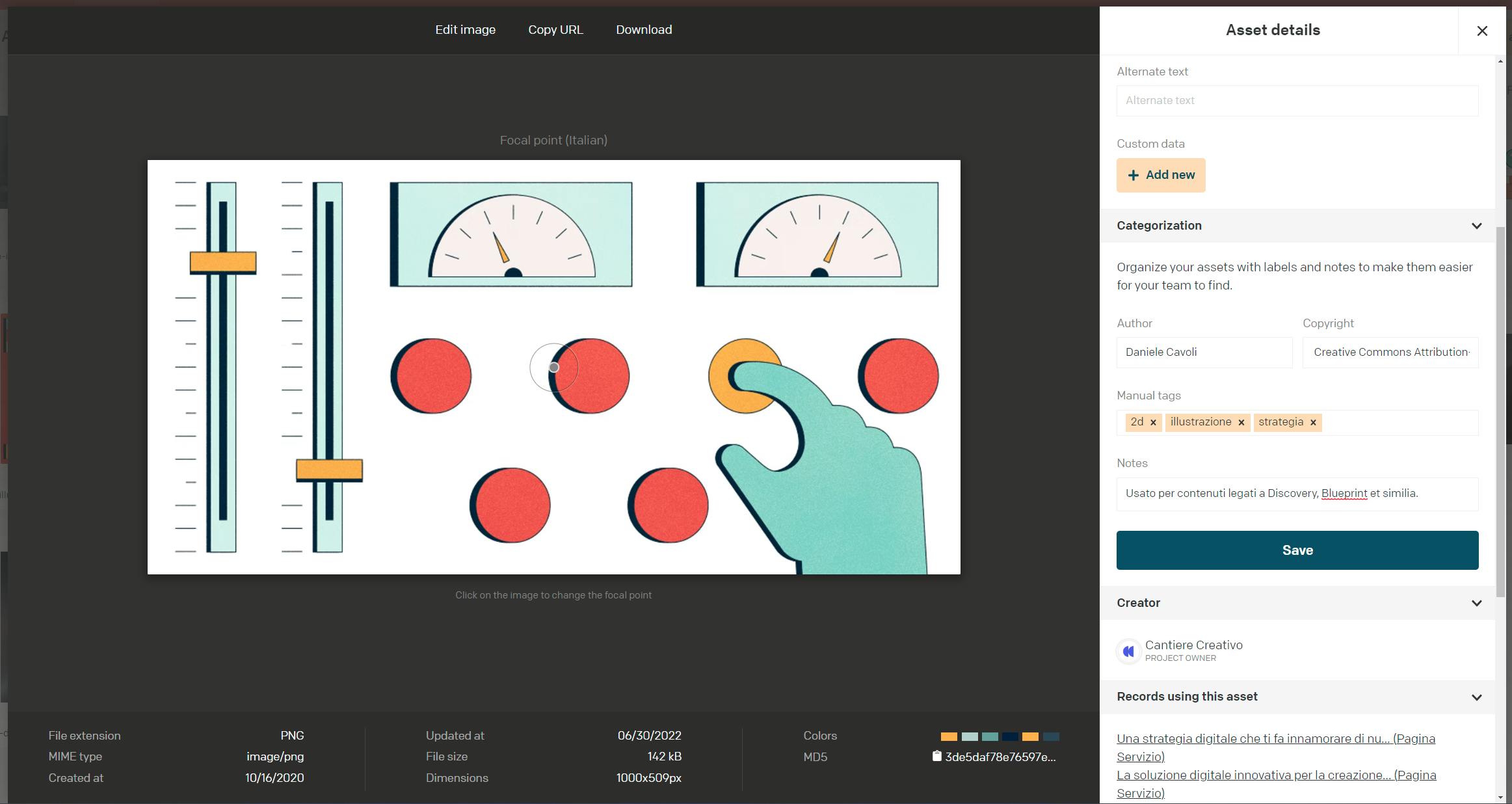
The next sections show who uploaded the asset to the Media Area and which records use the image; this is very useful for keeping control over publishing rights-managed photos, for example, or simply to know which assets aren't visible on the site.

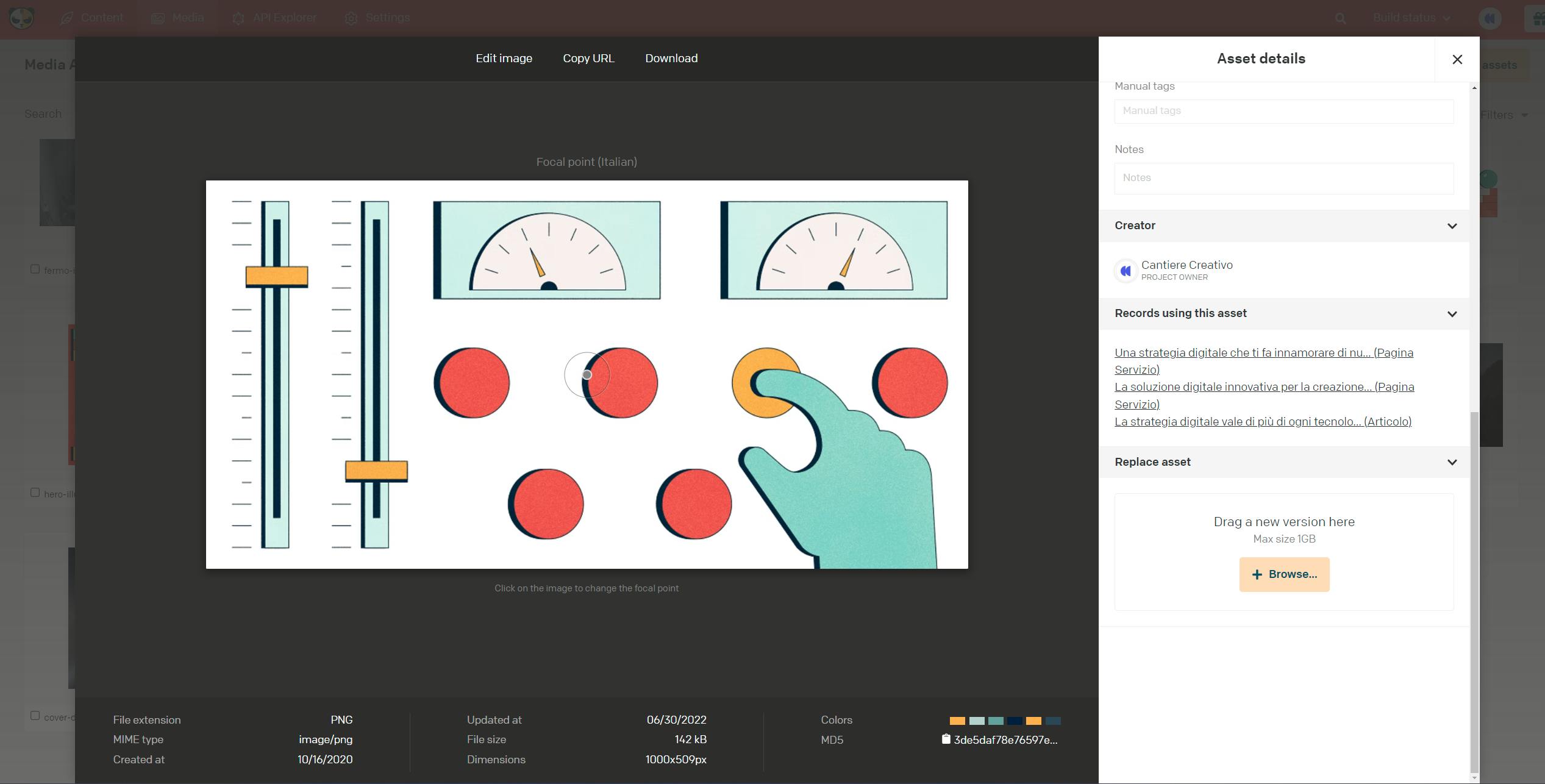
The last section lets you replace the published asset with another one; this lets us update every record that uses the resource in a single action.
Using filters in the Media Area
As we saw in our previous article on table view, DatoCMS filters are a very powerful way to narrow down your search or create categories you can retrieve at any time.
As with records, filters can be personal or shared with the whole team.
How to set an image's focal point
With sites increasingly responsive, it's hard to provide an image that works on every device and resolution; that's why DatoCMS lets you set, in just a few seconds, a focal point for the image.
Just drag the semi-transparent circle, usually in the center of the image, to the spot you think should never be cropped.
On the right, a preview of the image at various aspect ratios and sizes will appear automatically, giving you a rough idea of the final result.
Get the most out of DatoCMS for your editorial work
The Media Area's capabilities are invaluable for small editorial teams and large newsrooms publishing in many languages alike.
If you want to find out how to unlock the potential of DatoCMS for your specific use case, don't hesitate to contact us.


